How to Add a Countdown Timer in Mailchimp
Add a Mailchimp countdown timer as an animated GIF: free plan with no watermark, Code block setup in both builders, and time zone aware rendering.
A Mailchimp countdown timer gives your deadline a visible clock: a sale ending Sunday reads very differently when subscribers watch the hours tick down inside the email. You don't need a plugin or an integration for this. MailCountdowns generates the timer as an animated GIF, and Mailchimp's Code content block accepts the snippet as-is.
The GIF approach matters in Mailchimp specifically because Mailchimp strips JavaScript from Code blocks, as every sane email platform does. A script-based timer can't run in email at all. An image can, in every major client, and since the GIF is generated the moment each recipient opens the message, the remaining time is always current.
This page covers the setup with a countdown timer in Mailchimp step by step, how the Code block behaves in the new builder versus the classic one, and how a GIF timer compares to Mailchimp's own countdown option.
How to add a countdown timer in Mailchimp
Here's how to add a countdown timer in Mailchimp from a blank timer to a tested campaign. The full Mailchimp integration guide walks through the same steps with more detail.
-
Create your timer. In the MailCountdowns editor, set your end date and time, pick one of the 5 design presets, and adjust the colors to match your template. Copy the generated HTML snippet.
-
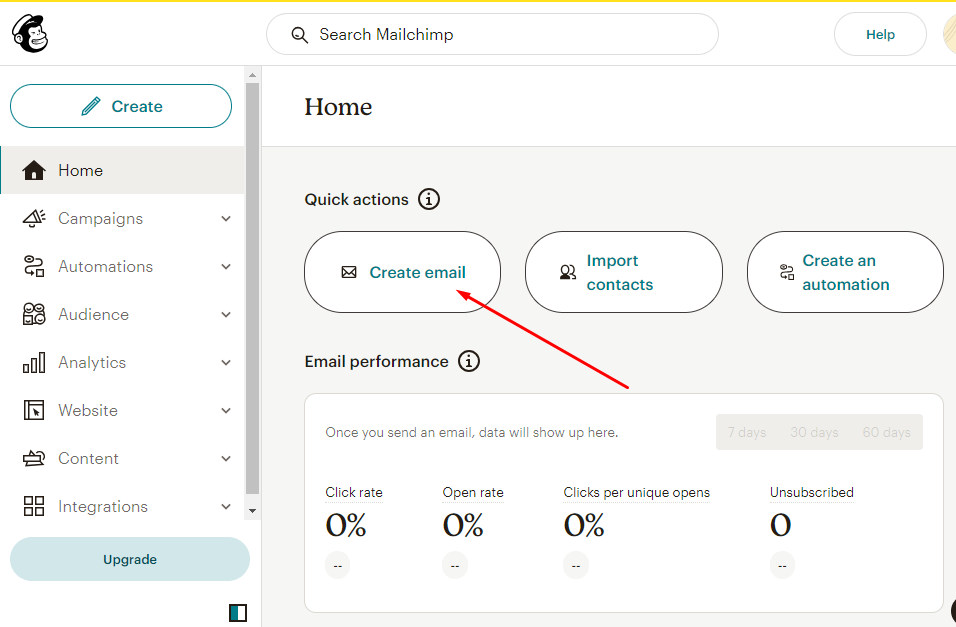
Open your campaign. Log in to Mailchimp and open the campaign in the email editor, at the section where the timer should sit. Directly above or below your main button is the usual spot.
-
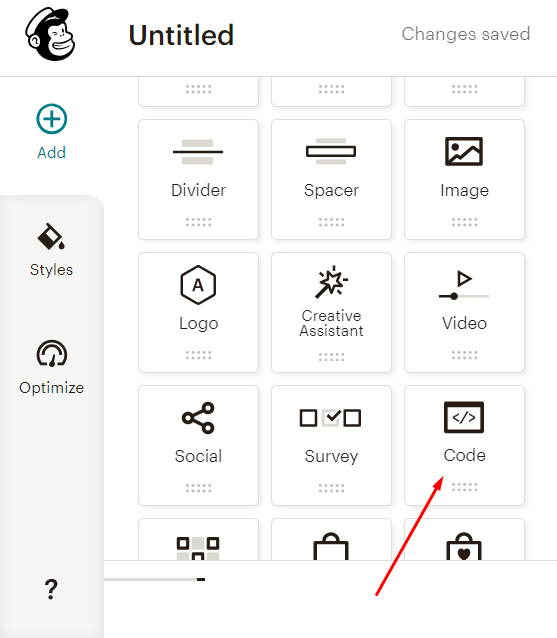
Add a Code block. Drag a Code content block into the layout. In the new builder it sits in the block sidebar; in the classic builder it's in the Content panel on the right.
-
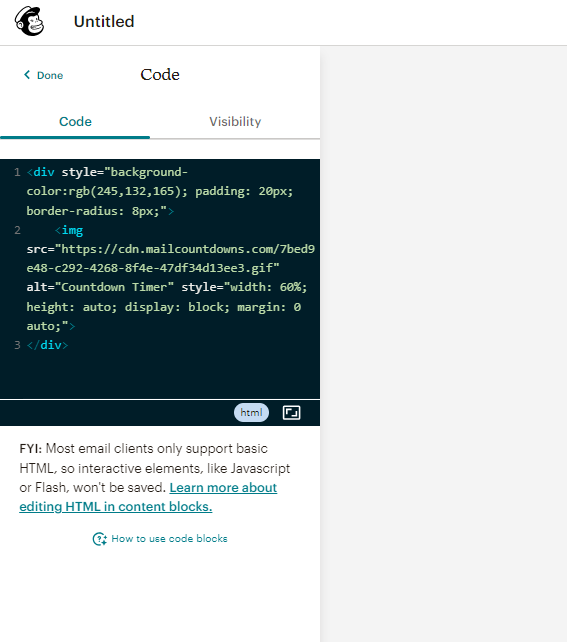
Paste the snippet. Click the block and paste the HTML you copied from MailCountdowns into the code editor. Don't edit the snippet; the image URL contains your timer's configuration.
-
Preview and send a test. Use Mailchimp's preview, then send yourself a test email. Reopen it after a couple of minutes; the displayed time should have moved, since each open fetches a fresh GIF.
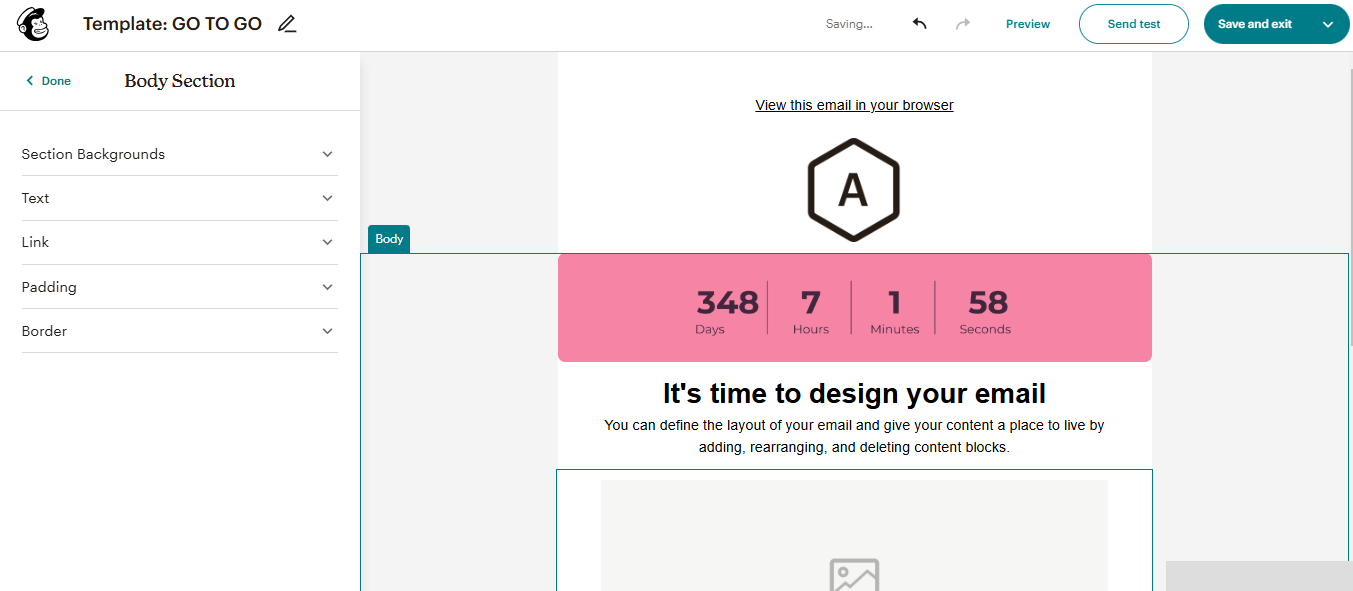
That's the whole integration. No API keys, no app connection, just one block and one paste.
Mailchimp's built-in countdown block vs a GIF timer
Depending on your account and builder, Mailchimp offers a built-in Countdown block for emails and landing pages. It's quick to drop in: you set an end date, a time zone, and adjust fonts and colors. If it covers your case, use it.
Its constraints show up at the edges. The block counts down to one fixed time in one time zone that you pick at setup, so a "midnight local time" deadline displays the wrong number for subscribers elsewhere. Styling stays within the block's own options, and the feature isn't visible in every account or builder, so a template you share with a client may not have it.
A GIF timer from MailCountdowns behaves the same in every Mailchimp account and both builders, because it's an ordinary image loaded through a Code block. You control the design in the MailCountdowns editor with presets and full color customization, and the same snippet can be reused across campaigns or moved to another platform later.
New builder vs classic builder
Both builders take the snippet, only the path differs. The new builder lists the Code block in its left-hand block sidebar; click or drag it into place and a code panel opens. The classic builder shows the Code content block in the Content tab of the right-hand toolbar; drag it into the layout and use Save & Close after pasting.
One behavior to know: Mailchimp removes any JavaScript it detects in Code blocks and only allows a fixed set of HTML elements. The timer snippet is an image wrapped in a link, both on the allowed list, so it passes through untouched.
Why not just export a static GIF?
You could render a countdown once and upload it like any other image, and plenty of people try this first. The problem is arithmetic: a GIF showing "23:59:12 remaining" is already wrong for anyone who opens the email an hour after you exported it, and email opens spread across days. A pre-rendered timer punishes exactly the late openers you most want to convert. Request-time rendering removes the problem, since the frames are computed when the open happens.
Timers that match your reader's time zone
Each GIF is rendered at request time on a CDN. When a subscriber opens your email, their client fetches the image URL and gets frames computed for that exact moment, which is why the countdown never drifts the way a pre-rendered GIF would.
Because rendering happens per request, MailCountdowns can also read where the request comes from. With geo time zone detection, a premium feature, the deadline is interpreted in each recipient's local time zone, so "ends at midnight" means their midnight, in Berlin and in Boston. For a single-region list, a fixed time zone on the free plan does the job.
What the free plan includes
The free plan renders your timer with no watermark; you just need a MailCountdowns account. That's the honest version of "free": no branding stamped on the corner of your campaign, no trial clock. The free email countdown timer without a watermark page covers what's included and how the rendering works.
Practical tips for Mailchimp campaigns: keep the timer near your call-to-action so urgency and action sit in the same glance, check contrast against your template background, and send tests to Gmail and Outlook before the real thing. In Outlook's classic desktop client the GIF shows its first frame only, and MailCountdowns renders that frame with the correct remaining time, so even the least capable client shows an accurate number.
Frequently asked questions
Does Mailchimp support countdown timers?
Yes. Drag a Code content block into your campaign and paste the HTML snippet from your MailCountdowns timer. The timer renders as an animated GIF, which every major email client can display.
Is there a free Mailchimp countdown timer without a watermark?
Yes. MailCountdowns has a free plan with no watermark on the GIF. You need to sign up for an account to remove the watermark, but there's no payment required.
Will the timer stay accurate after I send the campaign?
Yes. The GIF is generated at the moment each recipient opens the email, so the remaining time is computed at open, not at send.
Does the Code block work in Mailchimp's new builder?
Yes. Both the new builder and the classic builder include a Code content block. Drag it from the sidebar (new builder) or the Content panel (classic builder) and paste your snippet.
What happens in Outlook?
Classic Outlook for Windows shows only the first frame of a GIF. MailCountdowns renders that first frame with the correct remaining time, so Outlook readers still see an accurate countdown, just without the animation.
Will Mailchimp strip my timer code?
No. Mailchimp removes JavaScript from Code blocks, but the timer snippet is a plain image tag with a link. There's no script in it, so nothing gets stripped.
Can the countdown match each subscriber's time zone?
Yes, with geo time zone detection, a premium feature. The GIF is rendered per request, so a deadline like midnight local time counts down correctly for each recipient's location.
Ready to add urgency to your emails?
Build a countdown timer in the editor and paste it into your next campaign.
Create your countdown timer