How to Add a Countdown Timer to a Klaviyo Email
Add a Klaviyo countdown timer as an animated GIF: free plan with no watermark, HTML block setup for campaigns and flows, accurate at every open.
A Klaviyo countdown timer turns a deadline from a line of copy into something the reader can watch move. Klaviyo doesn't include a countdown block of its own, but it doesn't need one: the editor's HTML block takes any embed code, and MailCountdowns gives you a timer as an animated GIF that drops straight in.
The GIF format is the reason this works reliably. Email clients block JavaScript, so a scripted timer is a non-starter, but every major client loads images. MailCountdowns generates the GIF at the moment of each open, so the countdown a subscriber sees reflects the actual remaining time, whether they open your campaign five minutes or five hours after send.
Below is how to add a countdown timer to a Klaviyo email, plus what changes between campaigns and flows and how the per-open rendering handles time zones.
How to add a countdown timer in Klaviyo
Four steps in the editor, one paste. The full Klaviyo integration guide covers the same flow with a video walkthrough.
-
Create the timer first. In the MailCountdowns editor, set the end date and time, choose one of the 5 design presets, and tune the colors to your template. Copy the HTML snippet it generates.
-
Open your Klaviyo email for editing. Go to the campaign or flow email and open the template editor at the section where the timer belongs.
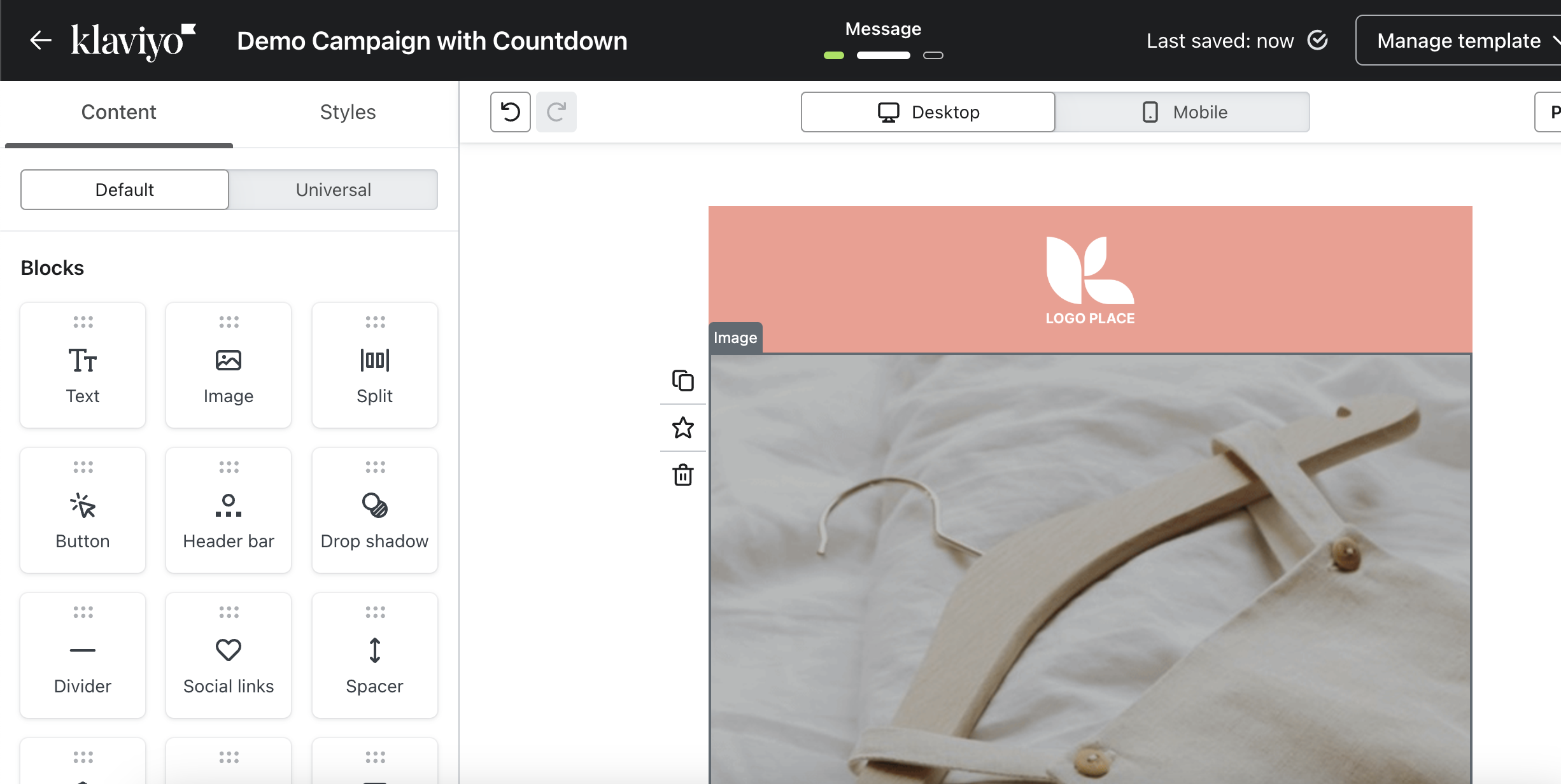
-
Drag in an HTML block. From the block sidebar, drag the HTML block into your layout and click it to open the source editor. Clear any placeholder content it starts with.
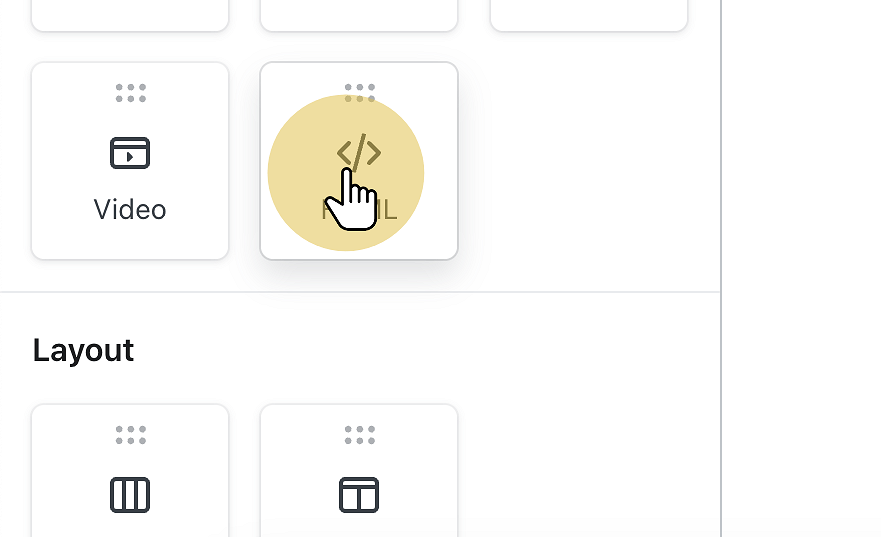
-
Paste the snippet. Drop the copied HTML into the block, unmodified. The image URL encodes your timer's end time and design, so edits can break it.
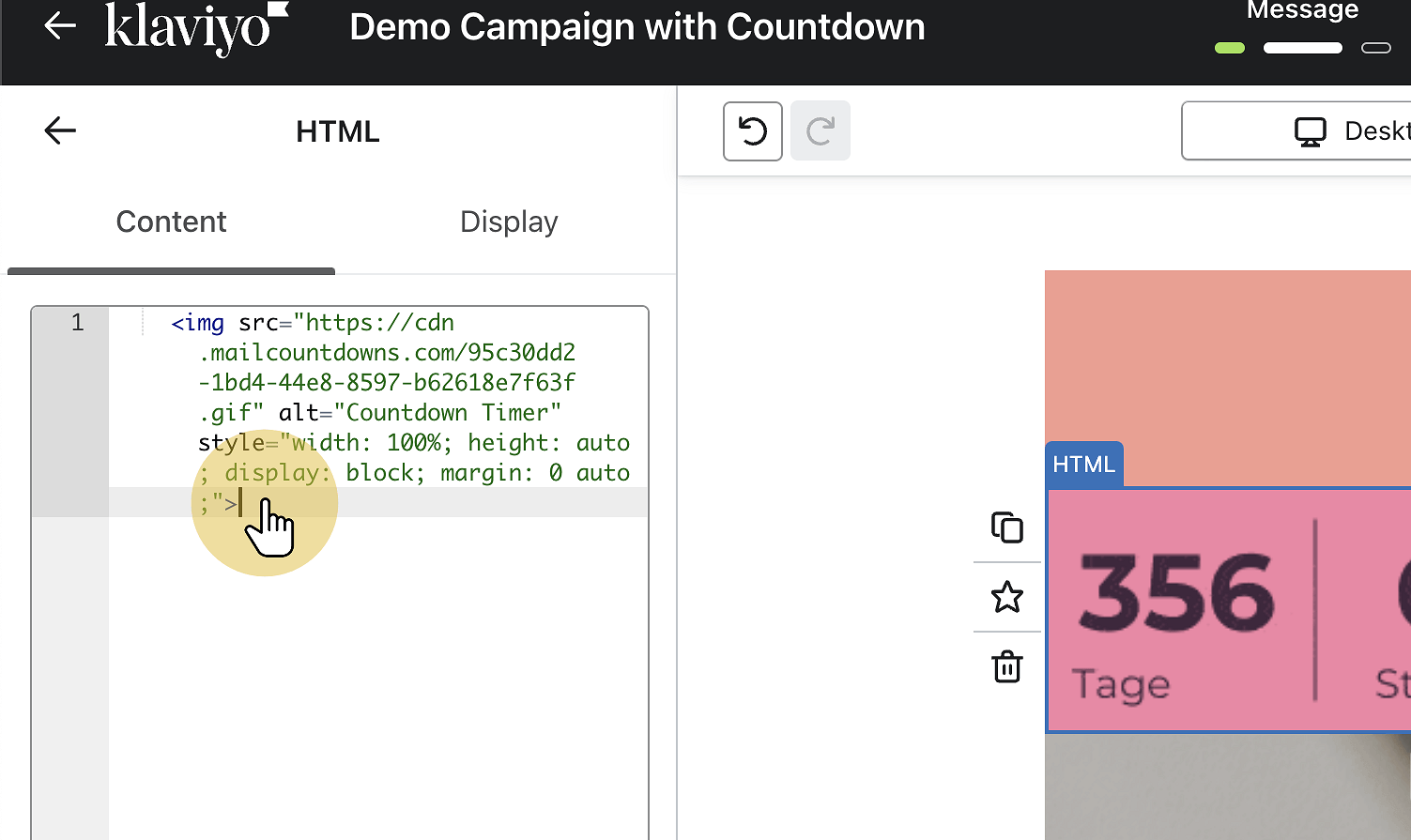
-
Preview and test. Check the preview, then send yourself a test email. Open it, wait two minutes, reopen: the displayed time should have dropped, because every open fetches a freshly rendered GIF.
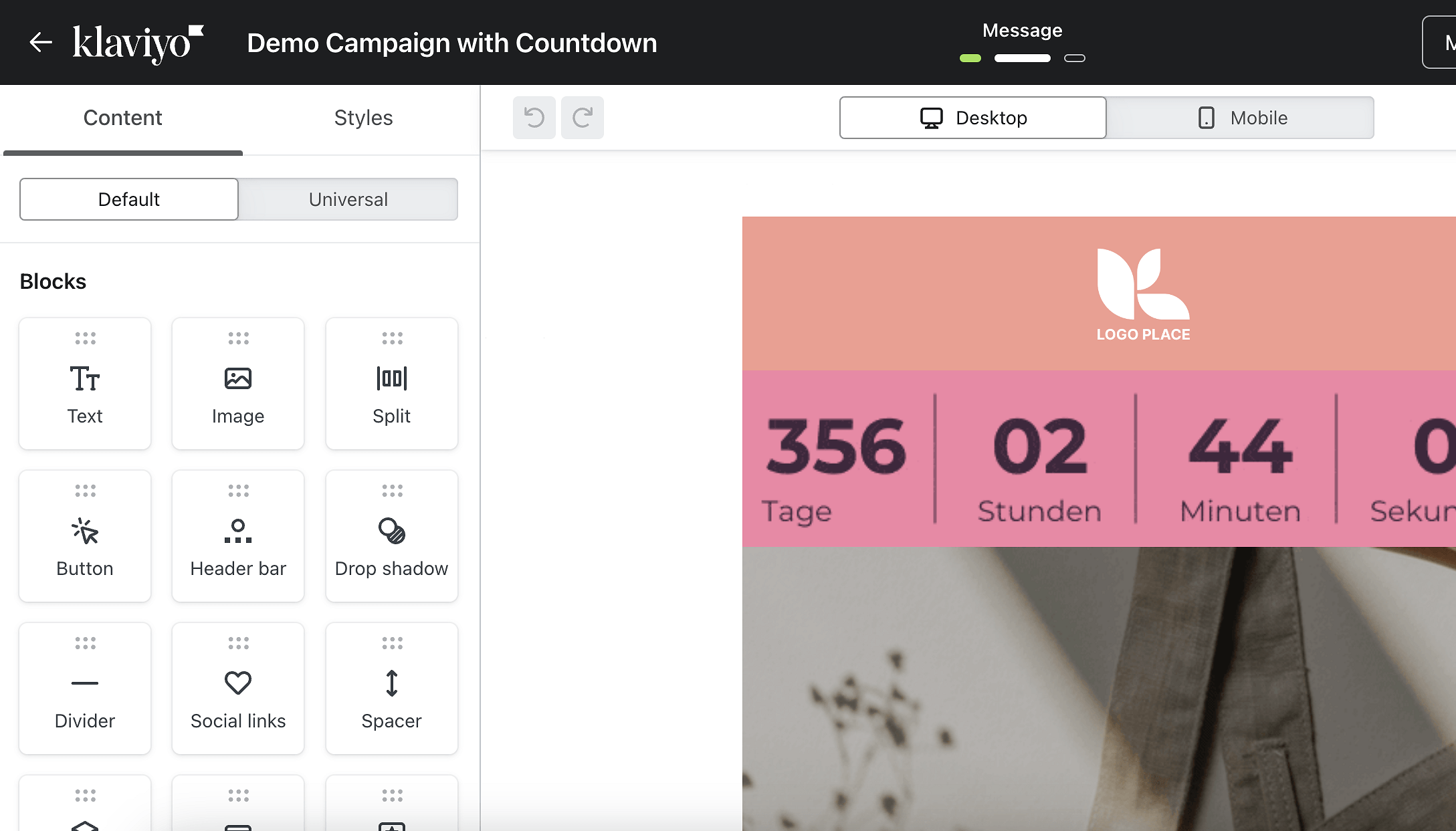
Place the block close to your main button. A countdown next to "Shop the sale" answers "why now" at the same moment it asks for the click.
Campaigns vs flows: where the timer fits
Klaviyo's two sending modes treat time differently, and that affects how you think about a countdown.
A campaign goes to everyone at roughly the same moment, counting down to one shared deadline: the end of a sale, a launch, a webinar. This is the simplest case. Set the end time in the MailCountdowns editor, paste the snippet, done.
A flow email is triggered per person: an abandoned cart, a welcome series step, a post-purchase follow-up. Recipients enter at different times, but the timer still behaves, because the remaining time is computed when the email is opened rather than baked in at send. A cart reminder pointing at Friday's deadline shows the correct hours left whether the cart was abandoned Tuesday or Thursday. For calendar deadlines, the same snippet serves both modes without changes.
What Klaviyo offers natively in this area is data, not rendering: date properties and event variables you can print as text in a template. Useful for writing "ends March 3rd" dynamically, but it produces no ticking clock. For the visual countdown, an HTML block plus a request-time-rendered GIF is the working combination.
About the HTML block
The block accepts standard HTML and strips scripts, which costs the timer nothing since the snippet is an image wrapped in a link. It works the same in campaign templates and flow templates, and the drag-in placement means you can move the timer between sections while designing without touching the code again.
A note on sizing: the timer is an image, so it scales like one. If your template is 600px wide, the timer sits comfortably at full column width or centered above a button. Check the mobile preview too; Klaviyo scales images down on narrow screens, and the digits should stay readable at that size. If they don't, a preset with larger digits or higher contrast fixes it faster than fiddling with the layout.
Timers that match your reader's time zone
Every GIF is rendered at request time on a CDN. The open triggers an image fetch, the CDN computes the remaining time for that instant, and the client displays frames that are accurate to the second of the open. That's the difference from a static GIF exported once, which is already wrong minutes after you save it.
Request-time rendering enables one more thing: MailCountdowns can detect where the request originates and interpret your deadline in the recipient's local time zone. This geo detection is a premium feature. With it, "sale ends at midnight" counts down to midnight in Sydney for the reader in Sydney and midnight in Seattle for the reader in Seattle. Lists concentrated in one region can stay on the free plan with a fixed time zone.
The free plan, without the asterisk
MailCountdowns renders free-plan timers with no watermark; creating an account is the only requirement. You get the 5 presets with color customization and the same per-open rendering paid users get. The details are on the free email countdown timer without a watermark page.
Before the real send, test in a few clients. Gmail and Apple Mail animate the GIF. Classic Outlook for Windows shows the first frame only, and MailCountdowns renders that frame with the current remaining time, so even there the number is right. If the timer looks correct in your Klaviyo preview and in a test open, it will hold up across the list.
Frequently asked questions
Does Klaviyo have a built-in countdown timer?
No. Klaviyo doesn't ship a native countdown block, but its editor has an HTML block that accepts any embed code. Paste the MailCountdowns snippet there and the timer renders as an animated GIF.
Is there a free Klaviyo countdown timer with no watermark?
Yes. The MailCountdowns free plan renders timers without a watermark. You need to create an account, but no payment is required.
Can I use the timer in Klaviyo flows, not just campaigns?
Yes. The same HTML block works in flow emails. Because the GIF is rendered when the email is opened, the remaining time is correct no matter when the flow sent the message.
Will the timer animate for my subscribers?
Yes, in most clients, including Gmail and Apple Mail. Classic Outlook for Windows shows only the first frame, which MailCountdowns renders with the correct remaining time.
Do I need to edit the snippet before pasting it?
No, paste it unchanged. The image URL carries the timer's configuration, and edits to it can break the rendering.
How do I verify the timer actually updates?
Send yourself a test email, open it, wait a couple of minutes, and reopen it. The displayed remaining time should have dropped, since each open fetches a freshly rendered GIF.
Can the deadline follow each recipient's time zone?
Yes, with geo time zone detection, a premium feature. The GIF is rendered per request, so the countdown can target midnight in each recipient's local time.
Ready to add urgency to your emails?
Build a countdown timer in the editor and paste it into your next campaign.
Create your countdown timer